Friday, 19 December 2014

UNIT 2 D2

D2

When I tested the Mac OS X computer system using the Nova Bench test it scored higher in terms of its RAM than the computer system I tested before. If the 2011 intel I7 with 580 gtx graphics was changed it would have the best outcome on the test overall. This would make it have the best computer system. If the RAM system was made better it would end up with a higher storage of memory data as well as it would have a faster performance. The system should be improved to make a better computer system, however the difference between the two RAM systems is not major. But if the RAM was improved the computer system would be perfect. To conclude the computer system has no other components which need to be changed to increase the performance of the computer.

UNIT 2 M3

M3
For this computer system the total Nova Bench score is 1943, which is the highest score i have seen within all computer systems. This means that the majority of the components of the computer system are functioning correctly, and are a high quality.


This computer system got a score of 175 for its RAM system. It has a RAM speed of 11339 MB/s.
175 is considered as a high RAM score in comparison to other computer systems, thus being a positive of this computer system.


The CPU tests score for this computer system came up to 796 which is a really good score. The CPU tests score can be broken down into three sections;
-Floating point operations/second: 210561168
-Integer operations/second: 914180192
-MD5 Hashes generate/second: 1265105
This is all intact which can easily be identified due to its huge contribution to the overall Nova Bench score. Al of these can happen many times per second which shows you that the computer system's CPU is intact.


The graphics tests for this computer system were very good, it scored a amazing score of 954, which is by far the highest graphics test score i have ever seen. The graphics test score contributed massively to the over all Nova Bench score.
-3D Frames per second: 2485
These scores are brilliant and therefore this computer system has no competitors in terms of graphics.


The only downfall of this computer system is the relatively low score it received in terms of hardware tests, the score received was 18.
-Primary partition capacity: 932 GB
-Drive write speed: 143 MB/s

If this was replaced it would increase the overall Nova Bench score of the computer system. All components of this computer system scored very highly, however the hardware tests did not go so well, and if this was replaced, the computer systems performance would be even better.

Monday, 8 December 2014

UNIT 2 M2

Windows 8 pc brings significant advantages to those who are upgrading existing PCs or purchasing new ones, thanks to features that better take advantage of the new OS's capabilities. The operating system offers improvements in performance, existing capabilities, and is cheaper. In a comparison with Mac OS X Mountain Lion, running in Boot Camp on a MacBook, Windows 8 even started up faster than Apple's latest desktop operating system. And it's not just startup time: Windows 8 ran several benchmark performance tests quicker than either Windows 7 or Mountain Lion. Microsoft has clearly put work into improving performance in Windows 8. windows also has SkyDrive which is accessible to any app that wants to use it, just as though it were a local drive. It also backs up your PC's settings, letting you replicate your environment.

software:

Adobe Creative Cloud: Photoshop, Illustrator and InDesign (the latter ousting QuarkXPress as the creative's layout tool of choice in the early 2000s) have always been the software applications graphic designers rely on to convert their ideas and concepts into projects for themselves or clients.
The latest versions of these apps can no longer be purchased in a box, you'll need to take out either a single software subscription (£17.58 per month per app) or (and this is much better value) a subscription to Adobe Creative Cloud costing £46.88 per month.
With the latter you'll be able to download not only Photoshop, Illustrator and InDesign but also every single one of Adobe's creative tools. The mac also contains quick look, which allows you to view -almost instantly- preview huge Photoshop, Illustrator, etc.

Hardware:

You will require a large monitor to in order to see the image youre editing in greater detail, you will need printers, scanner etc. Such as the ACER Aspire TC-605 Desktop PC (£800),
the HP Designjet Z3200ps GP 24" Printer (£2,939) because the printer will allow you to print large images in great detail, as this printer contains spectrophotometer to enable easy calibration and profiling, minimise bronzing on most glossy photo papers with HP Gloss Enhancer and the embedded spectrophotometer which helps you generate custom ICC profiles. The Vinyl Cutter Plotter / 28 inch Cutting Plotter Printer Sign Maker & SignCut Pro (£220) is also important as this would enable you to computer control the machine. Small vinyl cutters look like computer printers. The computer controls the movement of a sharp blade. This blade is used to cut out shapes and letters from sheets of thin self-adhesive plastic (vinyl). A Plustek OpticPro A320 - 1600 dpi x 1600 dpi - Flatbed scanner would also be useful as the scanning device can scan an A3 size document with high quality - resolution as high as 1600 dpi and scanning area as large as 12" x 17" (304.8 mm x 431.8 mm) - in just 11.2 seconds.

Friday, 28 November 2014

UNIT 2/30 P4/1

Computer system:

Apple Mac OS X computers are especially useful for designers, and many creative professionals choose to regularly update to the latest Mac hardware. Some graphic designers automatically veer towards the Mac OS X platform as a matter of course. Partly this is a result of Apple's graphic design heritage. (Apple pretty much created the desktop publishing market back in 1985 with the original Apple Macintosh computer, combined with PageMaker and the first LaserWriter printer.)
These days most designers work in a purely digital format, and will be using very different software to that created back in the 1980. However, Apple is still the choice for designers thanks to its more comfortable Mac OS X operating system and wide software support.

Hardware:

A big monitor is important because the tools do not get in the way of image you are illustrating. other hardware tools such as printers, scanners, digital camera etc. A printer such as the HP Designjet Z3200ps GP 24" Printer (£2,939) because the printer will allow you to print large images in great detail, as this printer contains spectrophotometer to enable easy calibration and profiling, minimise bronzing on most glossy photo papers with HP Gloss Enhancer and the embedded spectrophotometer which helps you generate custom ICC profiles. The Vinyl Cutter Plotter / 28 inch Cutting Plotter Printer Sign Maker & SignCut Pro (£220) is also important as this would enable you to computer control the machine. Small vinyl cutters look like computer printers. The computer controls the movement of a sharp blade. This blade is used to cut out shapes and letters from sheets of thin self-adhesive plastic (vinyl). A Plustek OpticPro A320 - 1600 dpi x 1600 dpi - Flatbed scanner would also be useful as the scanning device can scan an A3 size document with high quality - resolution as high as 1600 dpi and scanning area as large as 12" x 17" (304.8 mm x 431.8 mm) - in just 11.2 seconds.

Software:

Adobe Creative Cloud: Photoshop, Illustrator and InDesign (the latter ousting QuarkXPress as the creative's layout tool of choice in the early 2000s) have always been the software applications graphic designers rely on to convert their ideas and concepts into projects for themselves or clients.
The latest versions of these apps can no longer be purchased in a box, you'll need to take out either a single software subscription (£17.58 per month per app) or (and this is much better value) a subscription to Adobe Creative Cloud costing £46.88 per month.

With the latter you'll be able to download not only Photoshop, Illustrator and InDesign but also every single one of Adobe's creative tools. The mac also contains quick look, which allows you to view -almost instantly- preview huge Photoshop, Illustrator, etc.

Monday, 10 November 2014

UNIT 2 P8


Witness statement
Learner name
Chloe Hendry
Qualification
BTEC National 1st certificate in IT
Unit number and title
Unit 2.2 computer systems.
Assignment
P8

Description of activity undertaken (please be as specific as possible)
Using the computer system provided, carry out the following routine maintenance:
       Create a file structure under user as follows
A folder labelled with your name and within this folder create 3 folders labelled Home, Work and Study
       Configure the operating system to perform the following:
       back-up procedures
       automatic scheduling and deletion of unwanted data
       archiving
       defragmentation
       deleting temporary files
       Cleaning keyboard, mouse, display screen of the computer provided
       replacing consumables printer paper in the printer provided
·         replacing the damaged mouse


Assessment and grading criteria
Task 4. Undertake routine maintenance tasks on a standalone computer system. P8


How the activity meets the requirements of the assessment and grading criteria, including how and where the activity took place
I witnessed Chloe configure the operating system to back-up procedures, set automatic scheduling and deletion of unwanted data, I witnessed her archiving and reduce the amount of fragmentation. She then deleted temporary files; he cleaned the keyboard, mouse and display screen of the computer provided. She also replaced the consumables printer paper in the printer provided and replaced the damaged mouse.

Witness name
Chantelle Rosser
Job role


Witness signature
C. Rosser
Date
10/11/2014


Assessor name


Assessor signature

Date


Friday, 7 November 2014

UNIT 2 P7

TEST
METHOD
EXPECTED OUTCOME
ACTUAL OUTCOME
ACTION REQUIRED?
Software applications open & work as intended
Click on start and go to office, then open up a word document.
That the word document will open properly and all functions such as saving the document work as well.
The word document opened properly and all functions such as saving the document worked well.
No action required.
Default folder settings are correct
Go on start then click on documents, all your documents and files should appear. You should also be able to see folders such as my pictures.
When I click on my pictures all the default picture albums should appear.
The default pictures appeared.
No action required.
Desktop shortcuts go to the right place
On the desktop, left click the screen and select create a shortcut. Then choose a program of file that you want to appear on the desktop e.g Google Chrome. Click Google Chrome and access the internet.
After creating a desktop shortcut and choosing where to place it, it should appear on your desktop exactly where you placed it, it should be clear and easy to find.
Sometimes desktop shortcuts can appear in the wrong place when created.
The desktop shortcut will have to be moved into the position you want it to be, using click and drop to place the shortcut icon into the right place on the desktop.
The correct device drivers are installed
Plug the printer in and install the software that appears on the screen. Once you have done this, send a document to the printer and wait until it has printed.
The device driver that you install should be compatible with the computer system and should run as normal. The device driver should allow the computer system to operate as normal and allow you to access hardware functions.
The device driver may not be correctly installed, and the hardware connected to the computer may not operate as it should.
The hardware would have to be reconnected and the device driver would have to be installed manually and correctly. The device driver that you install will have to be compatible with your computer system, and should be a simple and easy procedure.
The correct paper sizes are set for printing
Put an A4 sheet of paper into the printer, then print a document and select the paper size to A4. The document will then print
The paper in the printer should be the correct size to fit in the printer, and to print off documents onto the paper.
Sometimes the printer paper size can be set on the wrong size for printing documents.
You will have to go onto printer settings and manually change the paper sizes that are set for the printer. You will have to change the setting to A4 in order to print documents onto the paper.The printer file can be opened, you then click on "printer properties" and click
on "paper", which is displayed at the top. From there you can click on "print on" box which then allows you to changes the paper sizes.

Menu option work as intended
Click on start and you are able to see all the different software has been installed and the file options.
The menu should show all of the options at the start when opened, for example the internet icon, office etc. All options that are available on the computer should be able to be identified on the menu when opened.
Some menu options may not be installed onto the computer when started up for the first time.
You would have to manually install the menu options that you desire to have which aren't there to begin with.
The correct date and time are set
The time and date is located in the bottom right hand corner of the screen. Hover the mouse over this and it will also tell you the day of the week. Go to control panel and ensure that the time and date is set in the right place e.g. London.
The date and time on the computer should be set correctly. It should be displayed in the bottom right corner of the computer monitor screen.
The date and time on the computer will not be correct automatically, it won't be set yet. You will have to set it manually.
To set the correct time and date on the computer, click in the bottom right corner of the screen where the time and date is displayed, a calendar should appear, simply click the day that matches the date you are at. A clock will also appear so that you can manually change the time. After setting the date and time on the computer, there will be no action required as the procedure should be a success. The correct date and time should be displayed in the left bottom corner on the screen of the monitor.


Tuesday, 28 October 2014

UNIT 2 D1


UNIT 2 M1


Functions
Mac OS
Windows XP
Machine and Peripheral Management
The Mac operating system is quite similar to Windows XP, but all of the devices that connect to the machine have to specialised for Macs. Mac OS controls the keyboard by changing the input coding into coding that the Mac can interpret.
Dashboard:
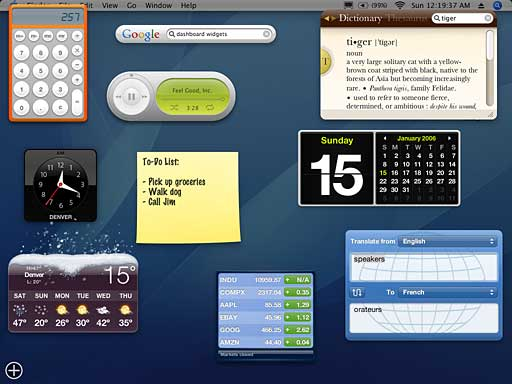
This is an application for Mac OS X operating systems. It is used as a secondary desktop for hosting mini-applications known as widgets. Widgets are simple applications which means they should not take much time to launch. Mac’s using OS X come with a stock ticker, calculator, weather report and notepad.
System Preferences:
This is an application installed in computers which run off OS X. It allows users to alter different system settings which are divided into separate preference panes. This was first introduced in the very first version of Mac OS X. This was to replace the control panel that was included in previous versions of Mac.
Windows XP controls all of the components and essentially all of the machine, as well as other things such as the mouse, printer and keyboard. The monitor is controlled by Windows, it does this by changing the resolution.
Security
Mac uses OS X Mavericks — which has all the latest security features and updates — is free. When new updates are available, OS X sends you a notification. Just accept the updates with a click and they download automatically. OS X checks for new updates every day, so it’s easy to always have the latest and safest version. Gatekeeper makes it safer to download apps by protecting you from inadvertently installing malicious software on your Mac. The safest place to download apps for your Mac is the Mac App Store. Apple reviews each app before it’s accepted by the store, and if there’s ever a problem with an app, Apple can quickly remove it from the store.
Time Machine:
This is an application that automatically backs up the entire Mac system. Everything from emails to music. The thing that makes Time Machine stand out from other backup applications is that it remembers how your system was exactly on any given day. Making it able to revisit your Mac as it was in the past. Time machine keeps hourly backups for the past 24 hours, daily backups for the past month, and weekly backups until you drive is full.
Windows XP uses ‘Microsoft Essentials’. This is to help guard against things such as viruses. spyware and many other malicious software. It provides protection for your home PC or other PC’s.
Microsoft Essentials is free and is suppose to be  simple to install and use. It also runs in the background so it won’t disturb you. You also don’t have to make any updates as it does it all itself.
File Management
The Mac uses formation to convert the data and make folder and files. Formatting is the process of applying logic to storage in the form of partitions and volumes. Partitions are used to define boundaries on a storage device. You can define multiple partitions if you want the physical storage to appear as multiple separate storage destinations. Even if you want to use the entire space available on a device as a single contiguous storage location, the area must still be defined by a partition.
Once partitions have been established, the system can create usable volumes inside the partition areas. Volumes define how the files and folders are actually stored on the hardware. In fact, it’s the volume that is ultimately mounted by the file system and then represented as a usable storage icon in the Finder.
Dock:
The Dock is the bar of icons that sits at the bottom or side of your screen. It provides easy access to many of the apps that come with your Mac (like Mail, Safari, and Messages). You can add your own apps, documents and folders to the Dock too.
Every Windows folder provides easy access to common file and folder management tasks. When you open any folder on your computer, a list of hyperlinked tasks is displayed next to the folder contents. You can select a file or folder, and then click a task to rename, copy, move, or delete it. You can also send a file in e-mail or publish it to the Web.
In addition to the basic file and folder tasks provided in all Windows folders, there are several folders that provide links to specialized tasks.
My Pictures and My Music folders provide task links that can help you manage your picture and music files.
In the My Computer folder, you can view and select the drives on your computer, the devices with removable storage, and the files stored on your computer. You can use the task links in this folder to view information about your computer, change system settings using Control Panel, and perform other system management tasks.
Device Drivers
OS X supports a trio of different device drivers. I/O Kit Kernel Extensions and Network Kernel Extensions run within the Mac OS X kernel xnu and have direct access to hardware devices as well as privileged microprocessor instructions. " Userspace drivers" run outside the kernel alongside regular applications while accessing hardware through the user clients that most device drivers provide within the kernel.Most modern operating systems are divided between kernel and userspace programs. The programs you see on the screen when you work at your computer are in userspace. Also in userspace are servers and background daemons that perform essential operating system functions in an invisible way.
The kernel contains privileged code that can directly access hardware, operate in real time, or execute privileged machine instructions such as virtual memory management.
The Mac OS X kernel is based on the FreeBSD Open Source UNIX kernel, but is modified to include the Mach microkernel at its core. Mach was originally developed to run in its own protected memory space, with the other kernel functions running in separate spaces. Microkernel architectures never really caught on because of the time overhead of context switches between the different kernel components. On Mac OS X, Mach is directly linked into the FreeBSD kernel; they run in the same space.
Device Manager provides a graphical view of the hardware that is installed on the computer, as well as the device drivers and resources associated with that hardware. Using Device Manager provides a central point to change the way the hardware is configured and interacts with the computer's microprocessor.

Using Device Manager to manage devices and their drivers require the following permissions, all of which are granted to Administrators:
  • The Load\Unload Drivers privilege.
  • The permissions needed to copy files to the system32\drivers directory.
  • The permissions needed to write settings to the registry.
Device Manager allows the following functionality:
  • Determine if the hardware on your computer is working properly.
  • Change hardware configuration settings.
  • Identify the device drivers that are loaded for each device and obtain information about each device driver.
  • Change advanced settings and properties for devices.
  • Install updated device drivers.
  • Disable, enable, and uninstall devices.
  • Reinstall the previous version of a driver.
  • Identify device conflicts and manually configure resource settings.
  • Print a summary of the devices that are installed on your computer.
Typically, Device Manager is used to check the status of computer hardware and update device drivers on the computer.
Features
Mac OS
Windows XP
Ease of Management
Consistency:
The whole OS and almost every application looks and feels the same, as if a single team developed the whole thing, thanks to Apple HI Guidelines. Official guidelines for user interface design made it possible for users to actually use most Mac-applications in a very same way, creating a seamless and comfortable experience in the end. Users are able to anticipate how system behaves and what to expect from its applications. In fact, consistency dramatically improves learnability and usability of interacting with the system.
Intuitiveness:
Installing and uninstalling applications is simply drag-and-drop. It can’t get much simpler and more intuitive than that. In fact, it’s hard to make any errors here, e.g. selecting some wrong option in a drop-down menu or clicking occasionally on the cancel-button. Quick and simple.
Effective and appropriate metaphors:
Mac effectively uses the power of unambiguous metaphors. The different overviews in the OS just work. Exposé does the right thing, Time Machine uses a 3D view where appropriate (none of that 3D-flip ‘just for the sake of it’-nonsense of Vista). Depth in Time Machine represents the location in time and therefore uses a neat metaphor helping the user, and browsing your albums with Cover Flow in iTunes (and Finder) feels almost like the real thing.
Informative error reporting on-demand:
Contrary to other user interfaces, Mac-applications display user notifications only when something goes wrong, not permanent balloons when some process is being started or finished. Think of it, do we really need someone to tell us when something goes the way it should?
Hiding the technical details:
Manually having to defragment a hard drive? Hmm, not here. On Mac users use technical tools by communicating with simple and memorable metaphors. Most users are not savvy and they have no clue how to take care of technical details so why should a user interface prompt them to do this?
Fitts’ Law:
The famous Fitts’ Law says that users are more productive with the mouse when they have less distance to travel and a larger target to click on to do their tasks. Mac’s design engineers have incorporated this rule in their design: almost all application menus are attached to the top of the screen, rather than to the applications’ windows. It improves the usability and reduces screen clutter. Compared to other user interfaces, regarding Fitts’ Law Mac performs better.
User input feedback:
Mac applications have no useless “OK” and “Apply”-buttons and changes are applied immediately and on the fly. Thus the system seems to be more responsive and requires less input from the users, making user feedback as effective as possible.
User support and navigation:
Remember Clippy? Mac has its own (OS wide) version as well, called Spotlight. The only difference is that it’s actually a lot more helpful and versatile. And damn speedy too! Really, navigating an OS hasn’t ever been that straightforward. It does calculations as well and launching applications is as easy as typing in its name and hitting Enter (see screenshot below).
Workflow:
Mac doesn’t force you to focus on a single window, but keeps them all visible in the background ensuring a more efficient workflow. However this might be a thing of taste and getting used to.
Use the computer without a display: Windows comes with a basic screen reader called Narrator that will read aloud text that appears on the screen. Windows also has settings for providing audio descriptions for videos and controlling how dialog boxes appear.
Additionally, many other programs and hardware are compatible with Windows and available to help individuals who are blind, including screen readers, Braille output devices, and other useful products.
Make the computer easier to see: Several settings are available to help make the information on the screen easier to see. For example, the display can be magnified, colors can be adjusted to make the screen easier to see and read, and unnecessary animations and background images can be removed.
Use the computer without a mouse or keyboard:
Windows includes an on-screen keyboard that you can use to type. You can also use Speech Recognition to control your computer with voice commands, and dictate text into programs.
Make the mouse easier to use:
You can change the size and color of the mouse pointer, and use the keyboard to control the mouse.
Make the keyboard easier to use: You can adjust the way Windows responds to mouse or keyboard input so that key combinations are easier to press, typing is easier, and inadvertent key presses are ignored.
Use text and visual alternatives for sounds:
Windows can replace two types of audio information with visual equivalents. You can replace system sounds with visual alerts and you can display text captions for spoken dialog in multimedia programs.
Make it easier to focus on reading and typing tasks:
A number of settings can help make it easier to focus on reading and typing. You can have Narrator read information on the screen, adjust how the keyboard responds to certain keystrokes, and control whether certain visual elements are displayed.